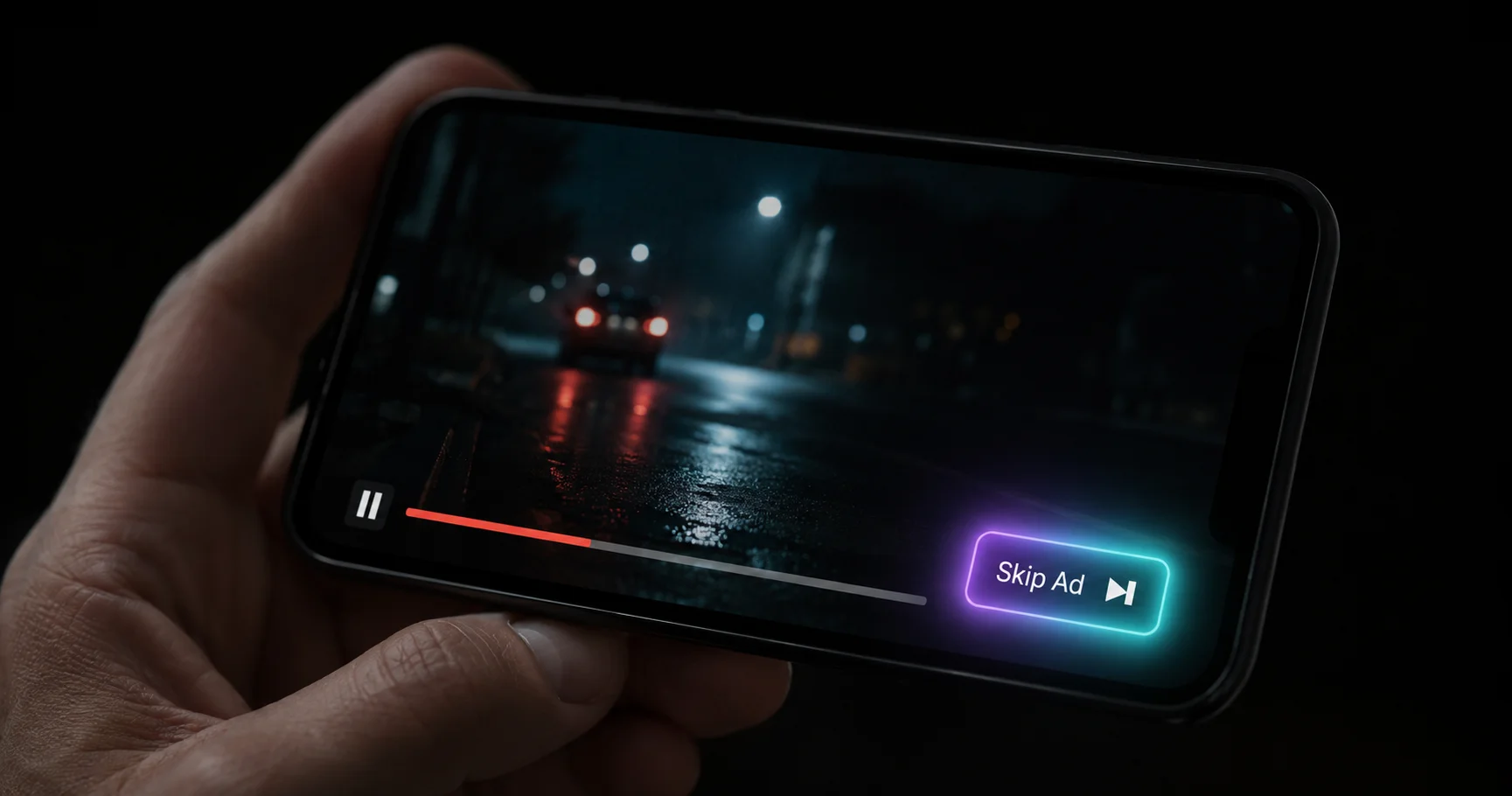
I was watching a YouTube video the other day and got hit with back-to-back unskippable ads. Not one. Two. I sat there waiting and found myself wondering: is there an app that just clicks the skip button for me the moment it appears? Turns out there are several. And understanding how they work is actually interesting.
The tools fall into two separate categories. One type blocks ads entirely so they never load. The other type lets the ad start, then programmatically clicks Skip the moment the button shows up. That second approach is the one I found more interesting to dig into, because it uses a part of Android that most people have never heard of.
Skippers and blockers do very different things
Ad blockers on desktop work by intercepting network requests. When YouTube tries to load an ad video from Google's ad servers, the extension just drops the request before it ever reaches your browser. You never see anything. The video resumes. uBlock Origin, AdBlock, and similar tools all work this way. It is clean and effective, but Google has been aggressively fighting it. They detect the pattern and serve you a "disable your ad blocker" warning before anything plays.
Auto-skippers work differently. They let the ad load normally. The ad starts playing. The tool just watches for the Skip Ad button to appear and clicks it the instant it does. From YouTube's perspective, you watched enough of the ad for the creator to get credit. From your perspective, you waited about zero seconds after the skip option appeared. This is why auto-skippers have been harder for YouTube to block. There is nothing to intercept at the network level.
Browser extensions
On a desktop browser you have two clean options. A dedicated skipper extension watches for the Skip Ad button and clicks it automatically, including muting the audio during those first five seconds. Full ad blockers like uBlock Origin are more aggressive and prevent the ad from loading at all, but they have been in an ongoing war with YouTube's detection systems. The skipper approach is currently more stable on desktop because it does not interfere with YouTube's ad-serving infrastructure.
✓ Most stable on desktop right nowAccessibility API apps
This is where it gets genuinely interesting. On Android, background apps cannot reach inside another app's interface the way extensions can on desktop. But Android has the Accessibility Service API, originally built to help users with disabilities interact with apps using alternate input methods. This API lets a background service read the screen layout of whatever app is in the foreground and fire click events on UI elements. Apps like Ad Skipper by Mavenka Labs use exactly this mechanism to detect the Skip Ad button inside the YouTube app and click it for you. No root required. No YouTube modification. The entire trick lives inside a standard Android permission.
✓ Works in the official YouTube appBrowser-based blocking
Apple's ecosystem does not allow background apps to interact with other apps the way Android's Accessibility API does. So on iPhone and iPad, there is no clean equivalent to the Android skip apps. Your best option is to watch YouTube through Safari or another browser that supports content-blocking extensions. AdGuard and 1Blocker both work this way. You lose a bit of convenience compared to the dedicated app, but it is your only real option short of subscribing to YouTube Premium.
● Works but requires switching from the appWhat the Accessibility API is actually doing
I found it worth going a bit deeper on the Android side because the underlying mechanism is elegant. The Accessibility Service is not screen-scraping in the old-fashioned OCR sense. It reads the actual view hierarchy of the app, which is the structured layout tree that Android builds for every screen. Each button, label, and container in YouTube's interface is a node in that tree with attributes: resource ID, text content, whether it is clickable, whether it is visible.
The service listens for events that signal a screen change. When YouTube updates its UI, maybe the countdown timer ticking or the skip button materialising, the service gets notified. It then scans the view hierarchy looking for a node whose resource ID matches com.google.android.youtube:id/skip_ad_button or whose visible text matches "Skip Ad". The moment it finds a clickable match, it calls a single method to perform an action on that node. The action is a standard click. YouTube has no way to distinguish it from a finger tap.
There is one fragility in this setup that is worth knowing. YouTube occasionally changes the resource ID of the skip button during major app updates. When that happens, a skipper app that only looks for the old ID will stop working until its developer updates the target. The more resilient implementations always check both the resource ID and the text label as a fallback. That way, even if Google renames the button's internal identifier, the text "Skip" is still there and still findable.
Most ad skipper apps also mute the media volume the moment an ad is detected and restore it when the skip fires. So during those first five mandatory seconds before the Skip button appears, you hear nothing. Combined with the instant click, the experience is close to having no ads at all.
What you would need to build one yourself
If you are an Android developer this is actually a fairly approachable project. The core is an AccessibilityService subclass registered in the manifest with the right permissions. You configure it to target only the YouTube app package, which keeps it from draining battery by watching everything on screen. Then you implement onAccessibilityEvent, call getRootInActiveWindow(), and search that tree for your target node.
@Override
public void onAccessibilityEvent(AccessibilityEvent event) {
    AccessibilityNodeInfo root = getRootInActiveWindow();
    if (root == null) return;

    // Strategy A: match by YouTube's resource ID
    List<AccessibilityNodeInfo> nodes = root
        .findAccessibilityNodeInfosByViewId(
            "com.google.android.youtube:id/skip_ad_button"
        );

    // Strategy B: fallback — match visible text
    if (nodes == null || nodes.isEmpty()) {
        nodes = root.findAccessibilityNodeInfosByText("Skip");
    }

    for (AccessibilityNodeInfo node : nodes) {
        if (node.isClickable()) {
            node.performAction(AccessibilityNodeInfo.ACTION_CLICK);
            return;
        }
    }
}
The main limitation if you want to publish this is Google Play's policies. Google restricts apps that use the Accessibility API for purposes other than assisting users with disabilities. An ad skipper framed as a utility will likely get rejected or removed from the store. For personal use via a side-loaded APK it works without any restrictions at all. That is also why you see these apps on third-party stores but rarely on the Play Store for long.
Quick comparisonWhich tool works best on which platform
| Platform | Method | Blocks or Skips | Creator gets credit | Stability |
|---|---|---|---|---|
| Desktop browser | uBlock Origin | Blocks entirely | No | Ongoing cat-and-mouse |
| Desktop browser | Auto-skipper extension | Skips after 5s | Yes | More stable |
| Android | Accessibility skip app | Skips after 5s | Yes | Good (ID changes occasionally) |
| Android / iOS | Brave browser | Blocks entirely | No | Good |
| iOS | Safari + AdGuard | Blocks entirely | No | Good |
Pick the right tool for how you actually watch
On desktop, a skipper extension is your most durable option right now. On Android, an Accessibility-based skip app inside the official YouTube app is the cleanest solution I have seen. On iOS, you are switching to a browser. None of these are perfect. But the Accessibility API approach on Android is genuinely clever because it uses infrastructure Google built and cannot easily remove without breaking assistive technology for millions of users.
I started this as a small curiosity. I ended up reading through the Android Accessibility documentation for an hour. That happens with this stuff. The question sounds trivial. The mechanism underneath is not.
Common questions